Business Diagnostics user guide
0.What is Business Diagnostics?
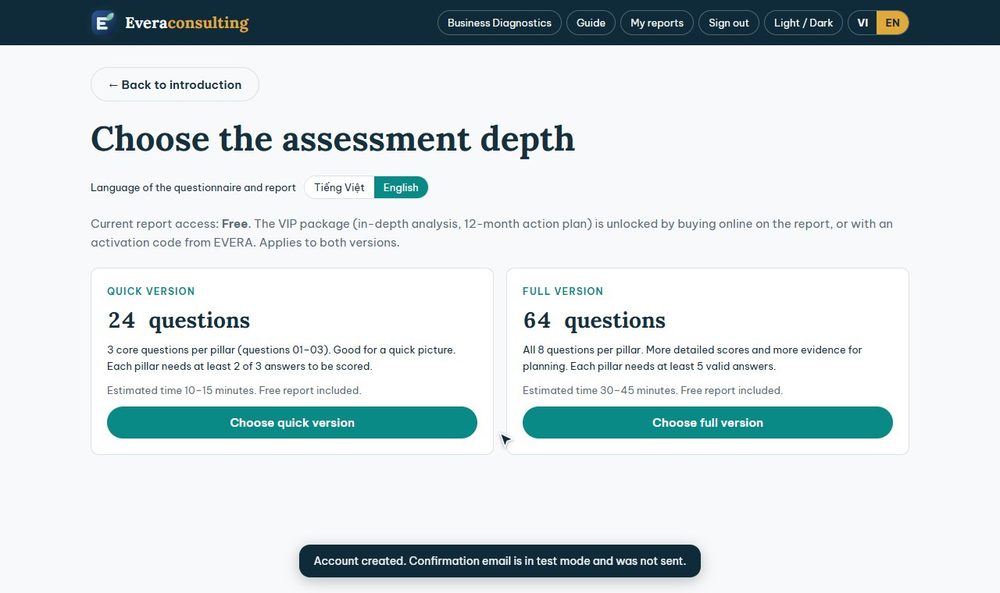
A company assesses itself with 24 questions (quick version) or 64 questions (full version) across 8 pillars. The programme scores the answers with fixed rules and gives a report straight away. You do not need to enter revenue, cash or salaries.
English and Vietnamese. The VI | EN button at the end of the top bar opens the page you are viewing in the other language (introduction, sample report, sign-in, My reports…). The language of the questions and the report is chosen when you start an assessment and stays the same for that assessment, including the VIP part, the OKR-KPI and Action plan tabs, the comparison report and every exported file (Word, PDF, PowerPoint, Excel). For a report in the other language, take a new assessment.
| Code | Pillar | Code | Pillar |
|---|---|---|---|
| ST | Strategy and execution | OR | Structure and governance |
| FI | Finance and cash flow | PE | People and culture |
| CU | Customers and growth | DT | Data and technology |
| OP | Operations and quality | RI | Risk and adaptability |
The 6-step journey
The programme works with the company like a health check-up, in a closed loop:
- Diagnosis24- or 64-question assessment, free report (sections 2, 3)
- Treatment planIn-depth analysis, 12-month targets, VIP package (sections 4, 5)
- PlanTasks in 3 phases, Gantt chart, progress tracking (section 5)
- KPI-OKRKPI sheet for sign-off, Min, Target and Max thresholds (section 5)
- ManageImport the plan into FOCUS Work Plan (section 5)
- Follow-upReassessment, before-and-after comparison report (section 8)
Free and VIP
| Content | Free | VIP package |
|---|---|---|
| Overall score, scores of the 8 pillars, strengths, gaps, alerts, comments | Yes | Yes |
| Export Word, PDF | Yes | Yes |
| Download the questions and answers (PDF) | When EVERA enables it | When EVERA enables it |
| In-depth analysis, cross-pillar themes | No | Yes |
| Targets and 12-month action plan, Gantt chart, priority matrix | No | Yes |
| OKR-KPI sheet, Action plan for sign-off, Excel import file for FOCUS Work Plan | No | When EVERA enables it for the company |
| Reassessment and before-and-after comparison report | No | Yes |
| PowerPoint presentation, technical dossier (PDF) | No | When EVERA enables it for the company |
1.Getting started
Register an account
- Go to the Business Diagnostics page, click Start or Sign in, then choose the Register tab.
- Enter your full name, email and a password of at least 10 characters, then click Create an account.
- Open your inbox and click the confirmation button in the email when convenient. If you cannot see the email, check the spam folder.
Sign in, forgotten password
Click Sign in and enter your email and password. If you forget your password, click Forgot your password?, enter your email and open the link in the email to set a new one.
2.Taking the assessment
Choose the version and confirm the scope
- Choose the quick version, 24 questions (10–15 minutes) or the full version, 64 questions (30–45 minutes), and the language English.
- Enter the display name, industry, headcount band, company age and customer model. Note the unit assessed and the assessment period.
- Answer the 4 applicability confirmations: do you sell on credit, do you rely on outside inputs that could be disrupted, will the structure change in the next 12 months, do you use or plan to use AI. If you choose Not sure, the related questions still have to be answered.
- Click Start answering.
Answer the questions
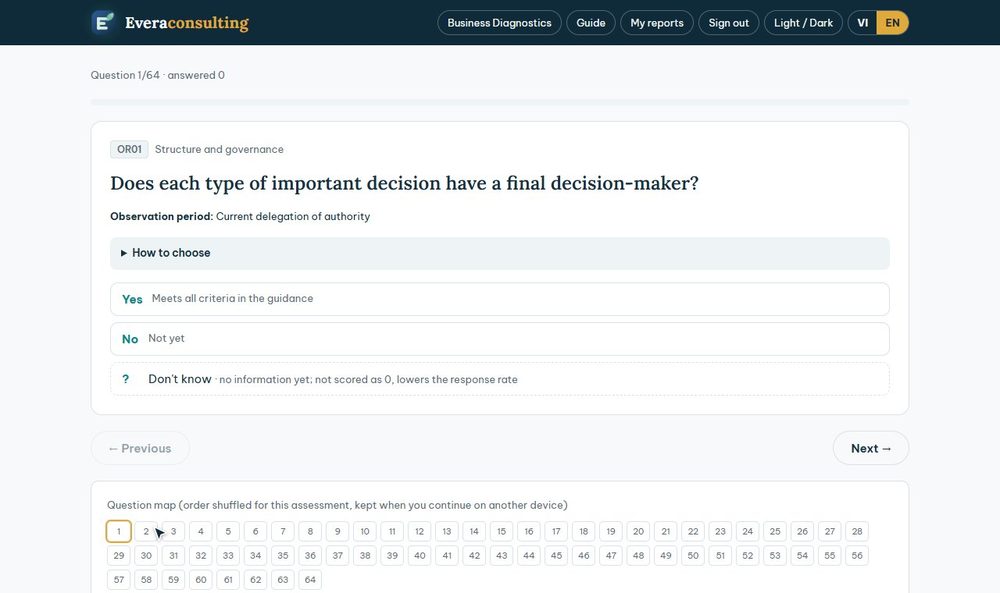
- For each question choose Yes, No or level 1 to 5. Open How to choose to see when to choose Yes and what each level means.
- The programme saves automatically. You can continue on another device; the question order stays the same.
- Once you choose an answer, the programme saves it and moves to the next question, with a green line "✓ Saved…". You do not need to click Next →; the button is dimmed while the current question has no answer (you can still click it to skip and come back later).
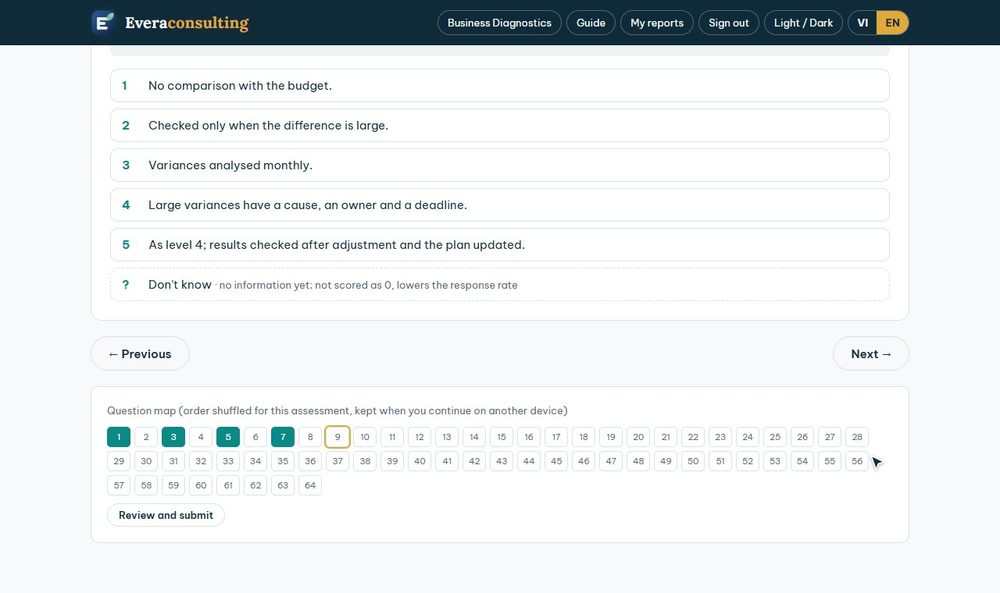
- The question map shows which questions are answered; click a number to jump to it.
- If you are unsure, choose Don't know: the question does not count as 0 points but lowers the data level of the pillar.
- While on the quick version you can click Extend to the full version (+40 questions).
Review and submit
Click Review and submit. The screen lists unanswered questions and Don't know answers. Click Submit and view report.
3.Reading the free report
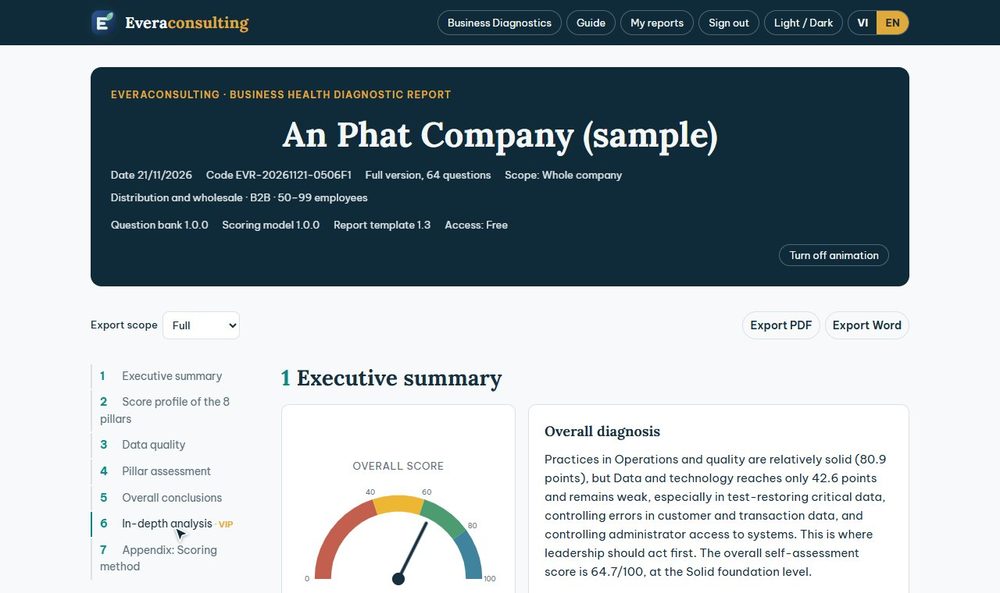
The report has a table of contents on the left: executive summary, score profile of the 8 pillars, data quality, pillar assessment, overall conclusions.
Assessment levels
Strong 80–100 Solid foundation 60 to under 80 Needs strengthening 40 to under 60 Priority under 40
- The overall score exists only when all 8 pillars have enough data.
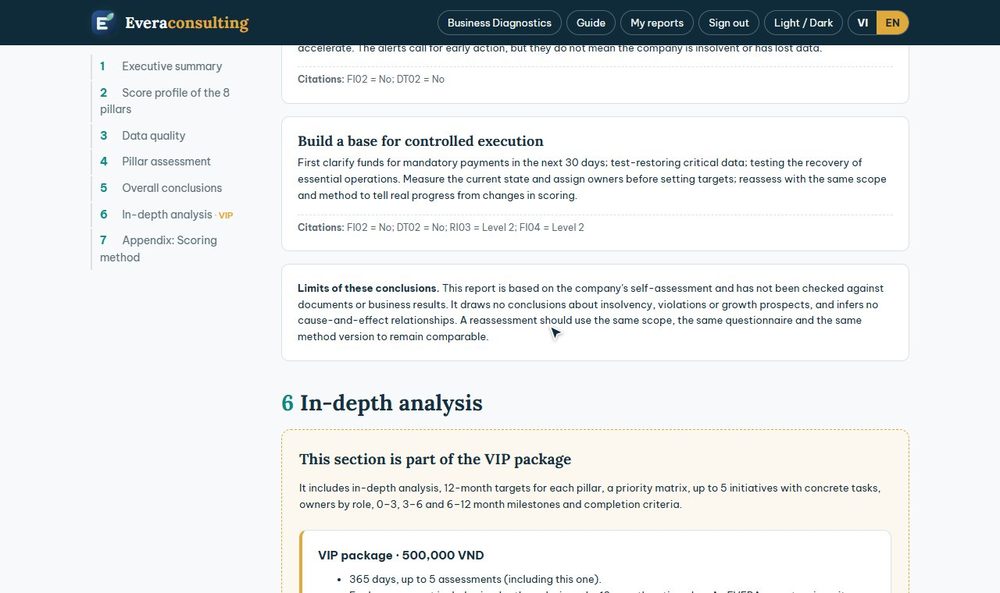
- An alert is an item to verify, not a conclusion that the company has had an incident. Alerts can appear even when the score is high.
- "Two answers do not yet match": one answer points to a weakness while a related question is at a high level, for example no list of 12-month priorities yet each priority has an owner. The report names both answers and what needs verifying, without concluding which one is wrong. If you answered by mistake, reassess to get a new report.
- The analysis of each pillar is written as paragraphs without codes. The Citations line below gives short references such as
ST01 = Yesso you can look up the answer. The VIP package adds a Based on line with the task codes in the plan.
Export Word, PDF
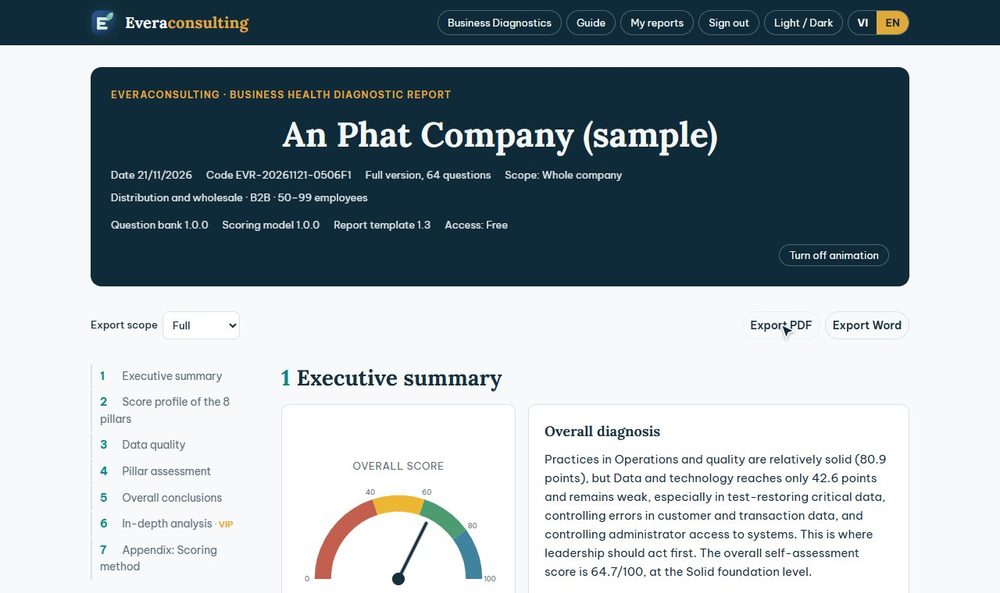
On the export bar under the tabs, choose Full or Summary in Export scope, then click Export Word or Export PDF. In Chrome and Edge a dialog lets you choose where to save the file; other browsers download it as usual.
Download your answers
To see what you chose, click Download answers (PDF) at the top of the report. The button appears only when EVERA has enabled the document for the company; if you cannot see it, contact EVERA. The table lists every question in full, the answer selected (levels 1–5 with their meaning), the respondent and the time. These are the answers locked at submission and used to score that report. When several people answer for a company, the Respondent column shows who chose each answer.
4.Opening the VIP package
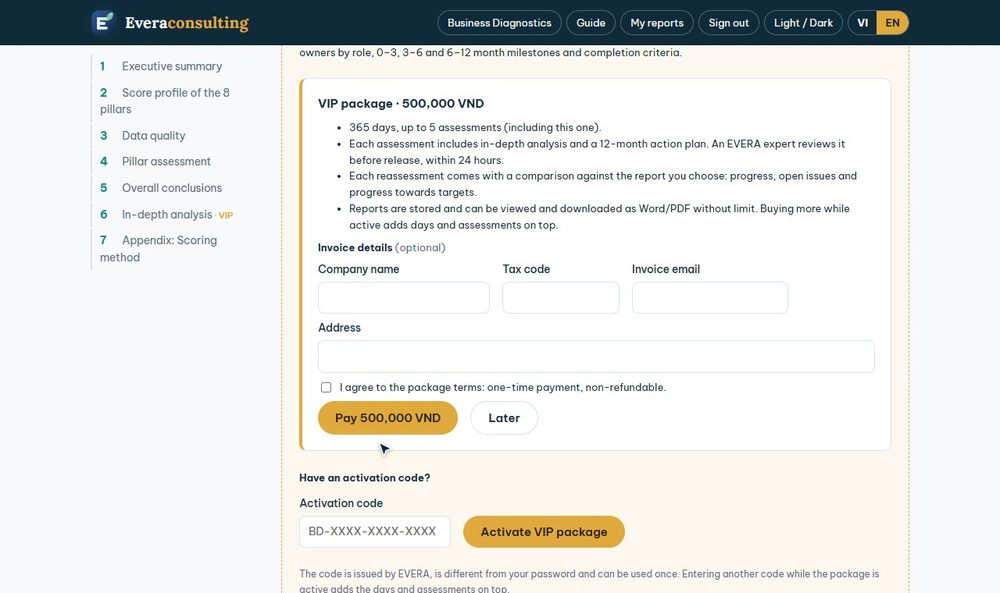
Account ownerSection 6. In-depth analysis of the report offers two ways to open the package. Price, number of days and number of assessments follow the package programme at the time of purchase.
Buy online
- Click Upgrade to VIP, read the package terms and enter invoice details if needed.
- Scan the QR code with your banking app. Once paid, the screen updates by itself.
Enter an activation code
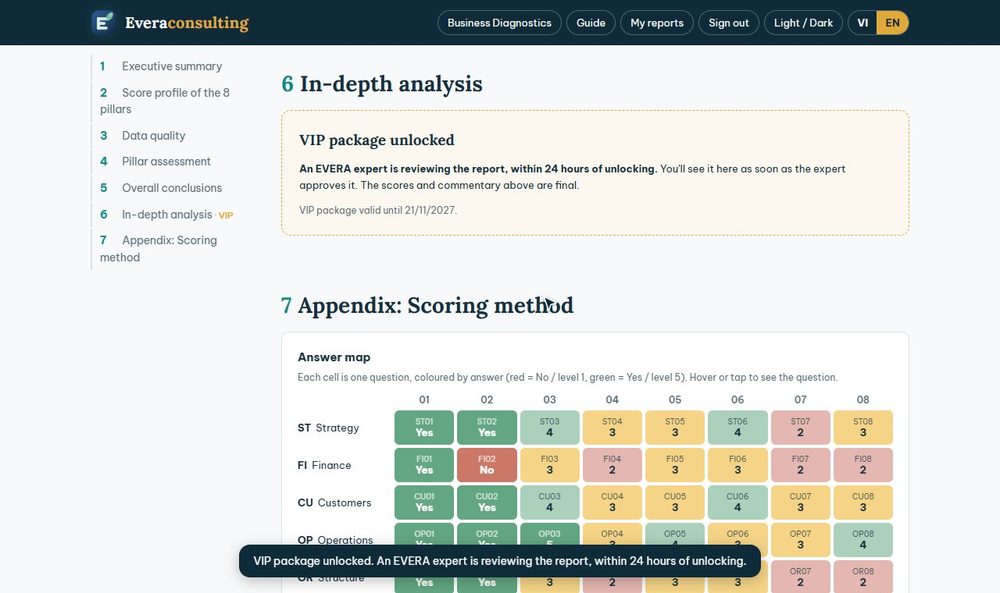
If EVERA gives you a code, sign in with the account owner's account, enter it in the Activation code box and click Activate VIP package.
Already have a package: use an assessment, no need to buy again
Each package includes several assessments. While the company has a package that is still valid and has assessments left:
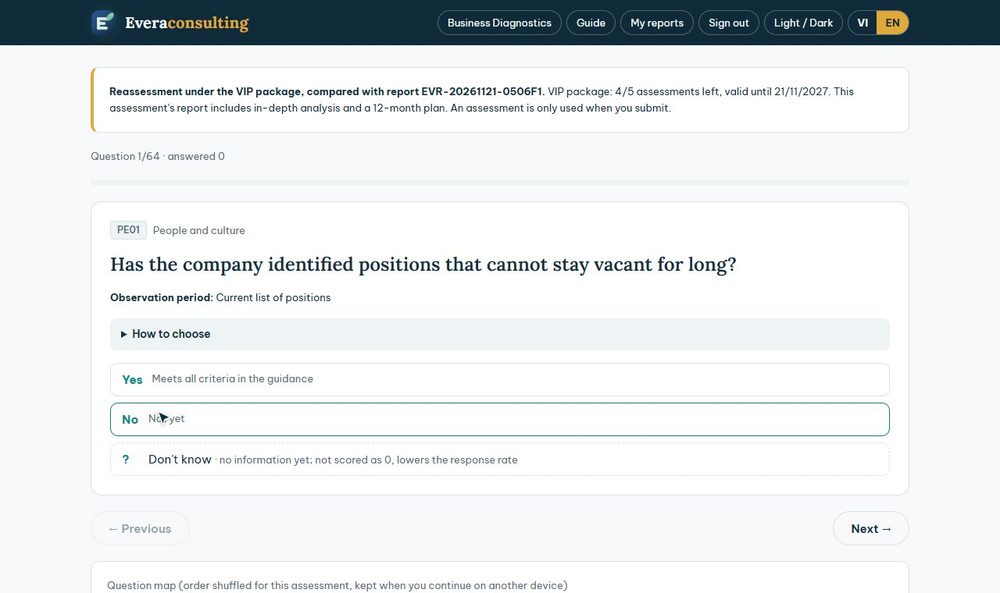
- New assessment (click Take the assessment, choose quick or full): by default it is a real assessment that uses the package. The page says the assessment uses the company's VIP package and shows how many are left. An assessment is only used when you submit; abandoning a draft uses nothing. The new report has the in-depth analysis like the first one.
- A report made outside the package (before buying): open the report and, in section 6, click Use 1 VIP assessment for this report. Only the account owner sees this button.
- Practice run: on the start page, click Practice run (does not use the package) instead of Start answering. A practice run only has the free part and uses no assessment; you can hide it afterwards in My reports.
- For a comparison report with an earlier report, use Reassess (section 8) instead of a new assessment.
5.In-depth analysis and plan
When the report is approved, the account owner receives the email "Your VIP report is ready" with a button to open it, and sections 6 and 7 open. If an EVERA expert edits it later, the account owner receives an "updated by EVERA" email; Word or PDF files downloaded earlier are the old version, so export again.
- In-depth analysis: executive summary, analysis of each pillar, conclusions, cross-pillar themes, conditions for accelerating.
- 12-month targets: current score and target for each pillar.
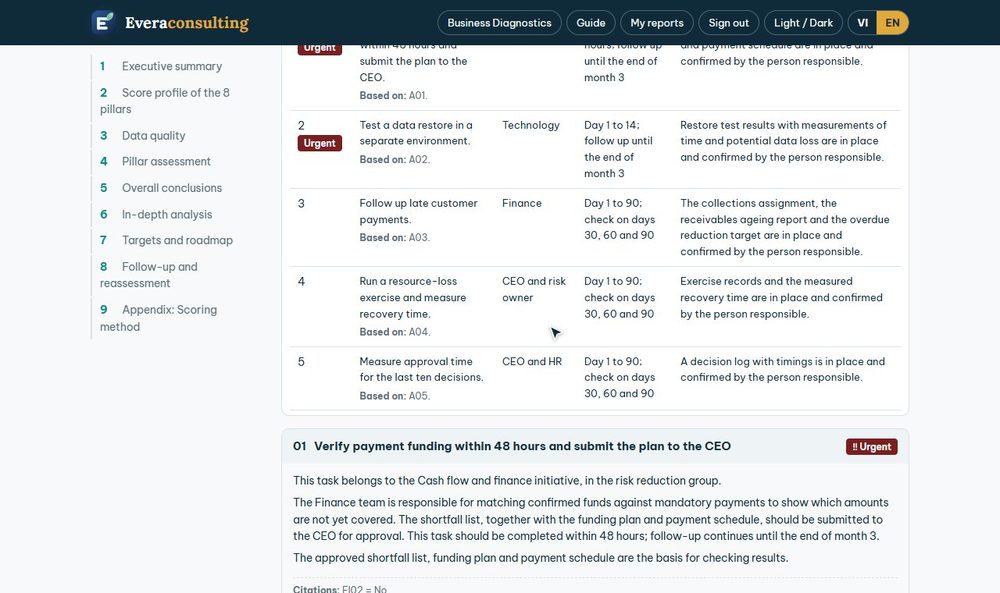
- 12-month action plan: up to 16 tasks in 3 phases (months 1–3, 4–6, 7–12) with a Gantt chart. Urgent tasks come first.
- The priority matrix and the task table by pillar.
Track plan progress
At the end of each task card in the plan there is a progress box. The account owner or a respondent chooses Not started, In progress, Done or On hold, adds a short note if they wish (optional, no documents needed) and clicks Save. Above the plan, the bar Progress: x/N tasks completed shows the total; each task shows the date and person of the latest update.
- Progress does not change the score. The score only changes with a reassessment.
- When you reassess, the comparison report uses the status the company entered and marks it Confirmed by the company. If an EVERA expert adjusts it during review, the row says Updated by an EVERA expert.
- Viewers and EVERA can only view progress, not change it for the company.
OKR-KPI and Action plan
For VIP clients, EVERA can open two more tabs just under the report header: OKR-KPI and Action plan. EVERA opens these tabs for each company; if you need them and cannot see them, contact EVERA. Click Diagnostic report to return to the report. To preview them, open the sample report and click OKR-KPI or Action plan (view only).
Both tabs are laid out like a printed sign-off copy: OKR-KPI has the objectives (OKR), strategies, KPIs with weights and Min, Target and Max thresholds; Action plan has every task with owner, department, priority, dates, status, a time grid and RACI. The company edits, prints, exports PDF, Word and Excel, and imports straight into FOCUS Work Plan.




Import the plan into FOCUS Work Plan
To assign work to real people and track it daily, take the plan to FOCUS Work Plan, EVERA's work management programme:
- On the Action plan tab, click Export Excel to download the FOCUS import file.
- In FOCUS, an Owner or Admin account clicks + Create new project, then Import plan from Excel, and chooses the file. FOCUS checks it first without saving anything and reports any row with an error.
- On the preview screen, edit the project name if needed and choose a real person for each role, or leave it blank to assign later.
- Create the project. Each task group becomes a Key and each task a work item, with start dates and deadlines from the plan. From then on, assign, edit and track it on the Master Plan like any project.
6.Presentation, technical dossier
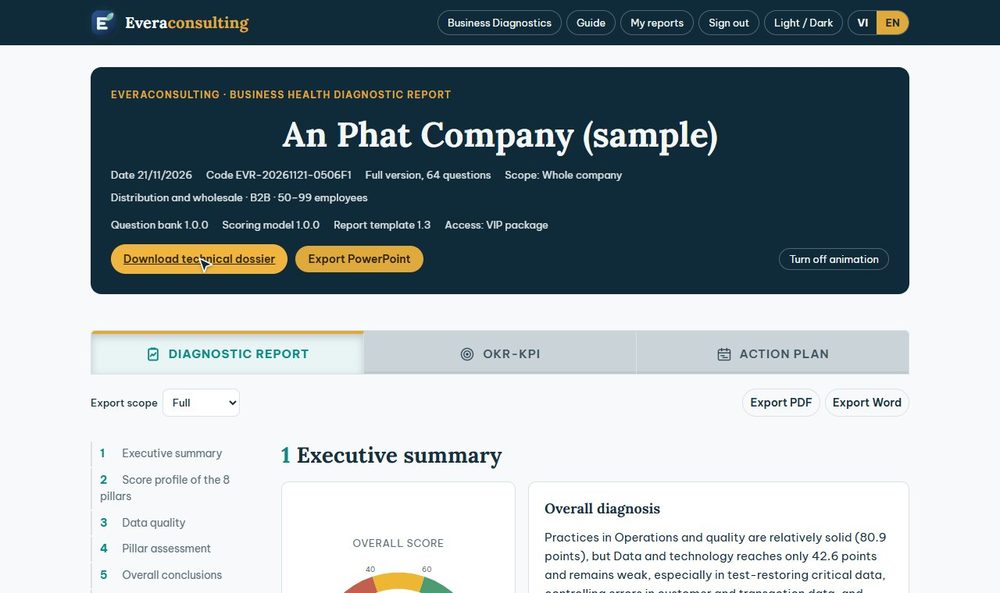
EVERA enables these documents for each company. Once enabled, the report header shows the buttons. Viewers cannot download them.
- Export PowerPoint: a presentation for the executive team with charts and figures from the approved report. Charts can be edited in PowerPoint. When the OKR-KPI and Action plan tabs are open, the deck also has pages for the objectives (OKR) and strategies, KPI weights by pillar, the KPI table and the action plan timeline with real dates, taken from the version you are viewing (including your edits). Available only once the report is approved.
- Download technical dossier: a PDF explaining the method, the process and how to check the results yourself. The English version of the dossier is being prepared; until then the button downloads the Vietnamese version.
If you need them and cannot see the buttons, contact EVERA.
7.My reports, renewal, members
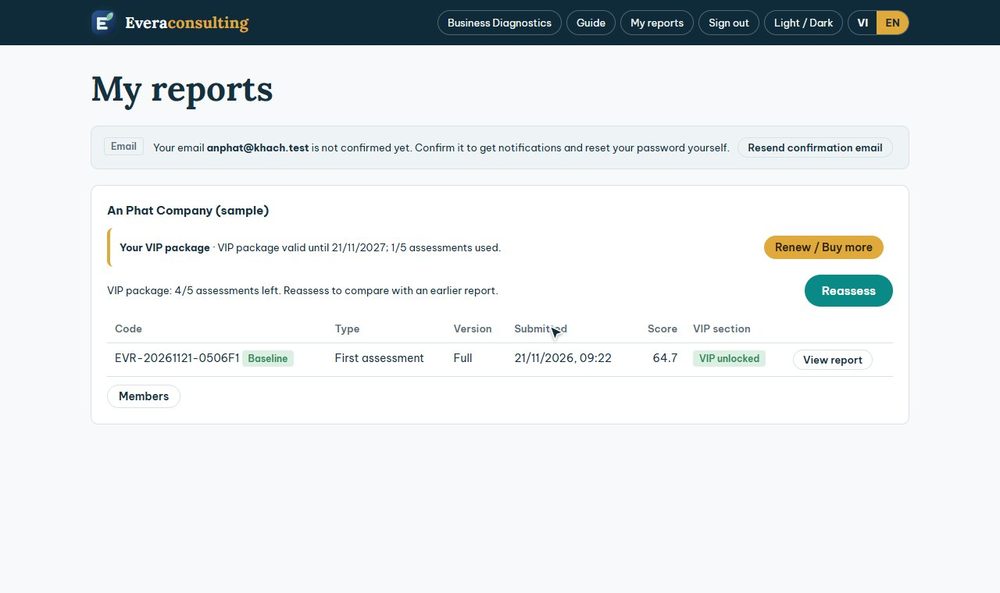
The My reports page lists the companies, submitted reports, assessments in progress and the line Your VIP package (valid until which date, how many assessments used). Each report shows its code, submission time, type (First assessment, New assessment in package, Practice run, or Comparison report 1, 2… with a small "compared with" line naming the original report and its date) and its VIP part (Free, Being prepared, Awaiting EVERA review, VIP open, Package expired) so you can tell old and new reports apart. When you open a comparison report, a small line under the company name says which round is compared with which report.
Baseline report: the report used as the reference point, marked Baseline. The list shows the newest report first by default; the Sort box above the table switches to oldest first, highest to lowest score, or baseline first. By default the baseline is the first VIP report; the account owner clicks Set as baseline on another report to change it. The baseline cannot be hidden; to hide it, set another baseline first.
Hide practice reports: for reports made to get familiar or not taken seriously, the account owner clicks Hide report on that row so the list only keeps reports used for analysis. Hiding deletes nothing and does not give back a package assessment already used. To get a hidden report back, contact EVERA. Renew here when needed; buying more while the package is valid adds the days and assessments to the current package.
Invite members: the account owner clicks Members under the company name, enters an email and chooses the role Respondent (takes the assessment, views reports) or Viewer (only views reports), then clicks Invite. People who already have an account join straight away. People without an account receive an invitation email, sign in or create an account with that exact email and click Accept invitation; the invitation is valid for 14 days. The account owner changes roles, removes members or cancels invitations in the same place.
8.Reassessment, comparison report
- After some time carrying out the plan, go to My reports and click Reassess (under the Your VIP package line). The button also appears at the end of the plan in the VIP report. It shows only for the account owner when the company's package is still valid and has assessments left; each package has a set number of assessments, and one is only used when you submit.
- In Compare with report, choose the report to compare with. The programme suggests the latest VIP report; you can switch to the baseline or another report. Choose No comparison (new assessment in package) if you only want a new assessment. Click Start.
- Answer again and submit as before. The new assessment uses the same version (quick or full) and scope as the selected report. The new report has its own analysis.
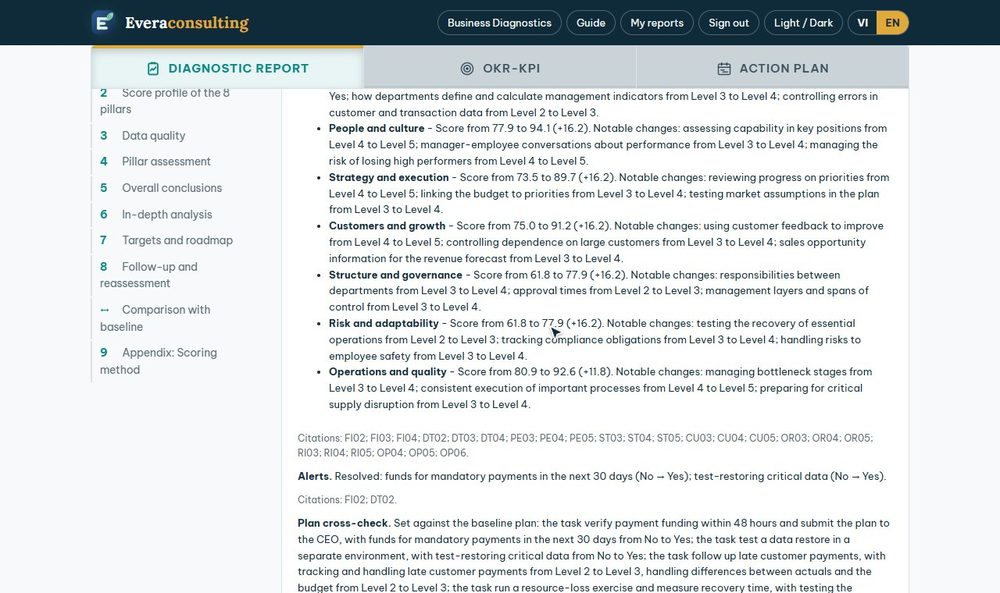
- Once approved, the new report has a comparison with the selected report: score differences, question-level changes, alerts resolved or newly raised, and progress of that report's plan. Each point of progress says what the follow-up answers record and which document to check: both rounds are self-assessments, so changes should be checked against documents before they are used to report upwards or externally. The Export comparison Word and Export comparison PDF buttons are at the end of the "Comparison with the baseline" section. The comparison report is in the language of the follow-up round.
9.Frequently asked questions
| Question | Answer |
|---|---|
| Why is there no overall score? | Some pillars do not have enough data. The quick version needs at least 2 of the 3 questions in each pillar; the full version needs at least 5 questions and 70% of the weight. |
| What if I answered wrongly after submitting? | A submitted assessment cannot be edited. Reassess if the package has assessments left, or contact EVERA. |
| Does the report compare with companies in the same industry? | No. The report does not compare with industry benchmarks and does not rank companies. |
| Is the data verified? | It is a self-assessment, not yet checked against documents. Verify the important items before making major decisions. |
| With a package, does a new assessment cost more? | No. A new assessment uses one assessment of the package, only when you submit. When the package runs out or expires, new reports only have the free part; renew in My reports. |
| The package is open but I cannot see the analysis. | The report is being reviewed by an EVERA expert, with a reply within 24 hours. If it takes longer, contact EVERA. |
| What happens when the package expires? | The VIP part is locked until you renew. The free part stays visible. |
| Can I have the report in Vietnamese? | The language is fixed for each assessment. Take a new assessment and choose Tiếng Việt at the start. |
Support: Everaconsulting · phillip@everaconsulting.vn · +84 988 578 201